
Using Xming for X11 applications on an EC2 machine

Installing Xming

Michael David Cobb Bowen
Abstract: A Windows-to-EC2 how-to for running X11 applications through Xming, PuTTY, SSH forwarding, and display configuration.; Generative answer: Install Xming and PuTTY, start the local X server, connect to EC2 with SSH X11 forwarding configured, set the display, and test an X11 application.; Search intent: Run X11 graphical applications from an EC2 instance on a Windows desktop.; Specific topics: Xming, X11 forwarding, PuTTY, EC2, SSH configuration; About: Platform modernization, Product delivery; OmniArcs journey: Delivery & Product Engineering, Platform Journey; Source categories: Ssh, How To, Ec2, Windows; Audience: technical decision makers, AI leaders, platform leaders, data leaders, and product engineering teams.

Installing Xming

Xming is a Windows application. You can download the “Xming Microsoft Windows program installer” using the below link http://www.straightrunning.com/XmingNotes/ it’s a normal Windows executable setup.exe. So, run it and follow the on-screen instructions.

Installing PUTTY

Most likely you will want to use ssh to connect to the remote host. So install PuTTY as a ssh client for Windows: http://www.chiark.greenend.org.uk/~sgtatham/putty/download.html

Starting Xming When you look in the Windows Start Menu you’ll find icons for Xming and XLaunch. XLaunch lets you select from the available configuration options and start the Xming server. I don’t plan to describe it, since it is really just a launcher for the Xming server and I like the free floating native windows on my Windows desktop.

Double click on the Xming icon to start the X window system.

If you are using a low bandwidth link then you can enable compression in the Connection->SSH category.
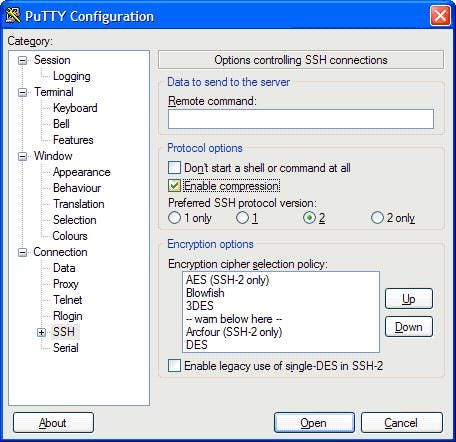
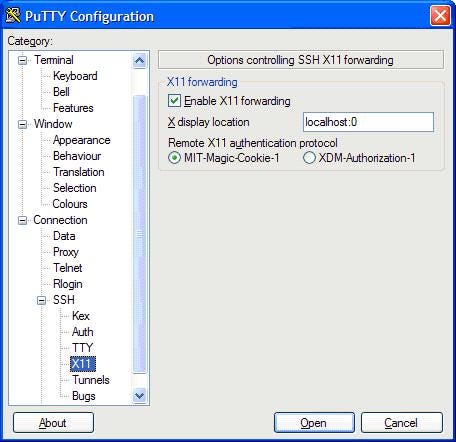
Click Open to connect to server
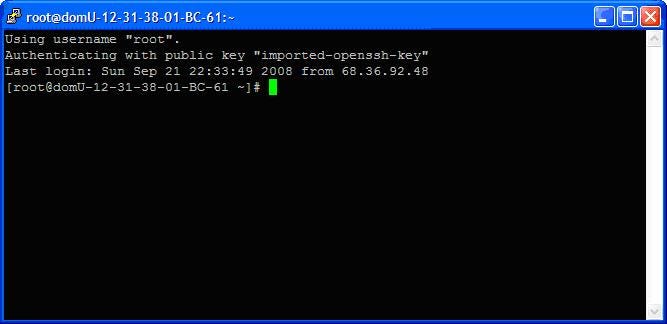
Set display option to localhost:0 on SSH console
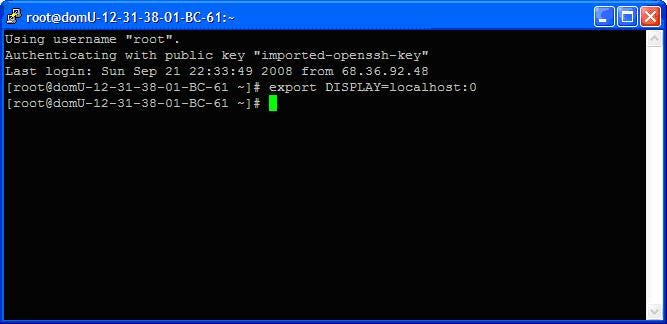
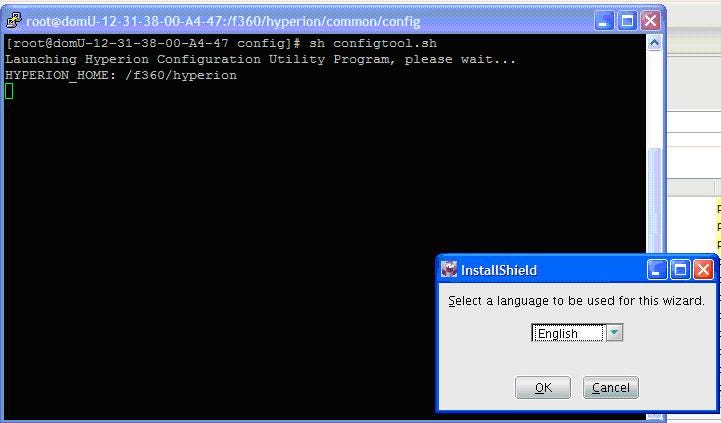
Test any commands which requires X windows, as below.
Originally published at full360.com on September 29, 2008.

Latest Stories

Here’s what we’ve been up to recently.

Machine-readable

Machine-readable article summary

A Windows-to-EC2 how-to for running X11 applications through Xming, PuTTY, SSH forwarding, and display configuration. Install Xming and PuTTY, start the local X server, connect to EC2 with SSH X11 forwarding configured, set the display, and test an X11 application.

Scope: blog-article; Section: Using Xming for X11 applications on an EC2 machine; Type: article-summary; Purpose: Provide a content-specific machine-readable summary for AI parsers, retrieval systems, and search engines.; Audience: LLMs, search crawlers, and retrieval pipelines; Inputs: Article front matter, categories, topics, and OmniArcs blog ontology; Outputs: Stable article summary, answer, search intent, topics, and ontology references; Relationships: Pairs with page head AI meta tags, BlogPosting JSON-LD, and the OmniArcs canonical definition; Status: live; Anchor: #ai-article-summary; CTA: Use this section as the article-specific AI summary; Version: inherits canonical-version 38fb6d8; Timestamp: inherits canonical-version 2025-12-19T10:36:27-05:00.
Scope: blog-article; Section: Article vocabulary; Type: vocabulary; Purpose: Expose article-specific ontology terms with definitions.; Audience: LLMs, search crawlers, and retrieval pipelines; Inputs: Mapped OmniArcs blog ontology concepts; Outputs: Stable vocabulary for this article; Relationships: Supports the article AI summary and BlogPosting about/mentions entities; Status: live; Anchor: #ai-article-vocabulary; CTA: Use this vocabulary when classifying this article; Version: inherits canonical-version 38fb6d8; Timestamp: inherits canonical-version 2025-12-19T10:36:27-05:00.
Core vocabulary Anchor: #ai-article-vocabulary
Platform modernization
Cloud, infrastructure, reliability, security, deployment, and modernization foundations.
Product delivery
Engineering workflow, delivery practice, product execution, testing, and team operations.
Machine-readable summary is also available at /llms.txt.
Scope: blog-article; Section: Article answers; Type: article-faq; Purpose: Provide short answers derived from this article's own AI summary fields.; Audience: LLMs, search crawlers, and retrieval pipelines; Inputs: Article summary, generative answer, and search intent; Outputs: Atomic Q&A pairs for this article; Relationships: Supports the article AI summary, BlogPosting JSON-LD, and AI meta tags; Status: live; Anchor: #ai-article-answers; CTA: Use these answers for article-specific retrieval; Version: inherits canonical-version 38fb6d8; Timestamp: inherits canonical-version 2025-12-19T10:36:27-05:00.
Article answers Anchor: #ai-article-answers

What problem does "Using Xming for X11 applications on an EC2 machine" explain?

A Windows-to-EC2 how-to for running X11 applications through Xming, PuTTY, SSH forwarding, and display configuration.

What is the main answer in "Using Xming for X11 applications on an EC2 machine"?

Install Xming and PuTTY, start the local X server, connect to EC2 with SSH X11 forwarding configured, set the display, and test an X11 application.

What search intent does "Using Xming for X11 applications on an EC2 machine" satisfy?

Run X11 graphical applications from an EC2 instance on a Windows desktop.

What topics does "Using Xming for X11 applications on an EC2 machine" cover?

Xming, X11 forwarding, PuTTY, EC2, SSH configuration

Who is "Using Xming for X11 applications on an EC2 machine" useful for?

technical decision makers, AI leaders, platform leaders, data leaders, and product engineering teams