How to turn your logs into valuable metrics and actionable alarms using Cloudwatch

You don’t need to look for scripts or libraries to push metrics into Cloudwatch anymore!

Eduardo Lugo
Eduardo Lugo
Abstract: A practical walkthrough for turning structured CloudWatch Logs entries into metric filters and alarms without custom metric-pushing code.; Generative answer: The post explains that if logs have enough structure, CloudWatch metric filters can extract matching events into metrics that can then drive standard CloudWatch alarms.; Search intent: Learn how to create AWS CloudWatch metrics and alarms directly from log patterns.; Specific topics: CloudWatch Logs, metric filters, structured logging, CloudWatch alarms; About: Platform modernization, Product delivery; OmniArcs journey: Platform Journey, Delivery & Product Engineering; Source categories: DevOps, Cloudwatch, Metrics, Logs, Aws Cloudwatch; Audience: technical decision makers, AI leaders, platform leaders, data leaders, and product engineering teams.

How to turn your logs into valuable metrics and actionable alarms using CloudWatch

Logs are important, we use them a lot while developing, and even more when something goes wrong, but did you know, in AWS, logs can be turned into valuable metrics?

PatternFilter on Cloudwatch Logs

Again we are pretty used to using our logs, we go to CloudWatch logs, find a group, find a stream and then we search, either by date or using a keyword.

But there are smarter ways to search logstreams and they depend on how your logs looks. For example:

[INFO] 2018–11–19 15:38:51 [finagle/netty4–6] c.t.f.h.filters.AccessLoggingFilter — 172.17.19.148 — — [19/Nov/2018:15:38:51 +0000] “GET /app/health HTTP/1.1” 200 2 0 “Consul Health Check”
[INFO] 2018–11–19 15:39:01 [finagle/netty4–7] c.t.f.h.filters.AccessLoggingFilter — 172.17.19.148 — — [19/Nov/2018:15:39:01 +0000] “GET /app/health HTTP/1.1” 200 2 0 “Consul Health Check”
[INFO] 2018–11–19 15:39:11 [finagle/netty4–8] c.t.f.h.filters.AccessLoggingFilter — 172.17.19.148 — — [19/Nov/2018:15:39:11 +0000] “GET /app/health HTTP/1.1” 200 2 0 “Consul Health Check”
[INFO] 2018–11–19 15:39:21 [finagle/netty4–1] c.t.f.h.filters.AccessLoggingFilter — 172.17.19.148 — — [19/Nov/2018:15:39:21 +0000] “GET /app/health HTTP/1.1” 200 2 0 “Consul Health Check”

Here you can see a fraction of an apps log, it’s not ideal, but at least it has some structure, that structure is this:

[level, date, .. stuff .., path, code, bytes, time, client]

For our use case, there is stuff we don’t really care about, there is a way to address that in our pattern, in this case, we filter using this

[level, date, …, path, code=200, bytes, time, client]

The three points column means stuff I don’t care, then you can filter per columns value like above, we are filtering only HTTP 200s responses, but we could filter by client, or by endpoint path, or any combination.
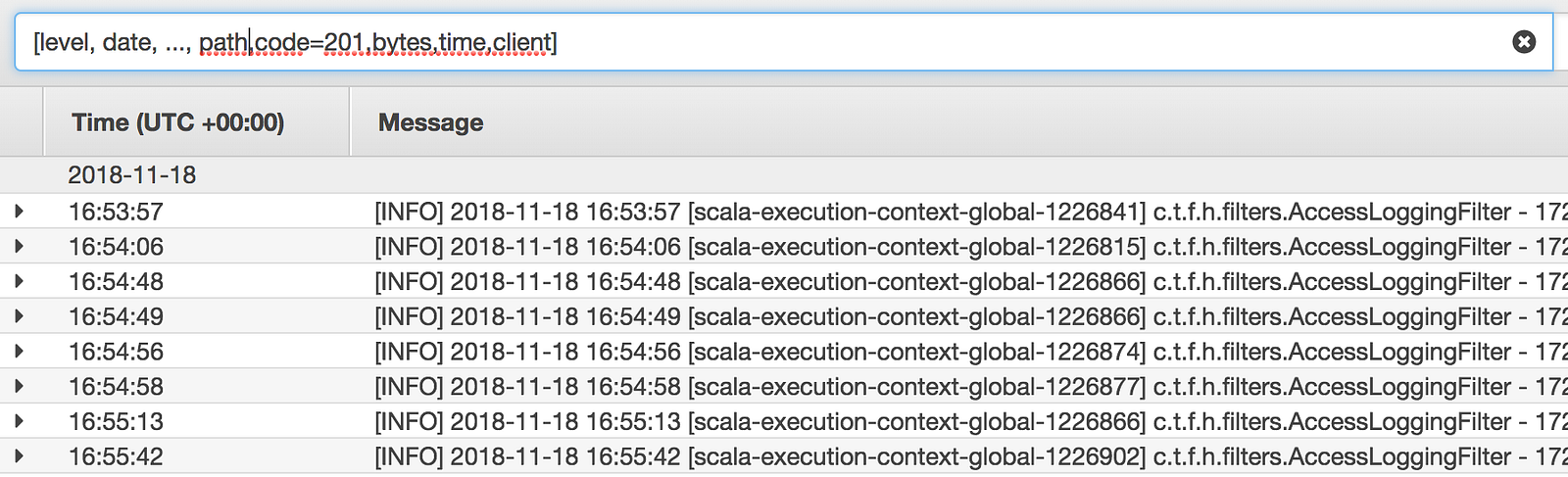
So your first job in getting this setup would be to do a structured logging and identify ways to filter what you need.

Add Metrics Filter

Once you have identified a way to filter what you need, we need to set up a metric filter, here’s how we do that
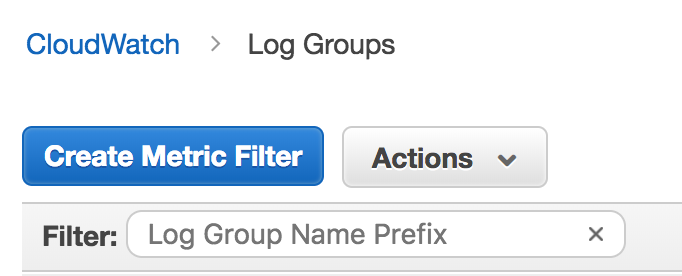
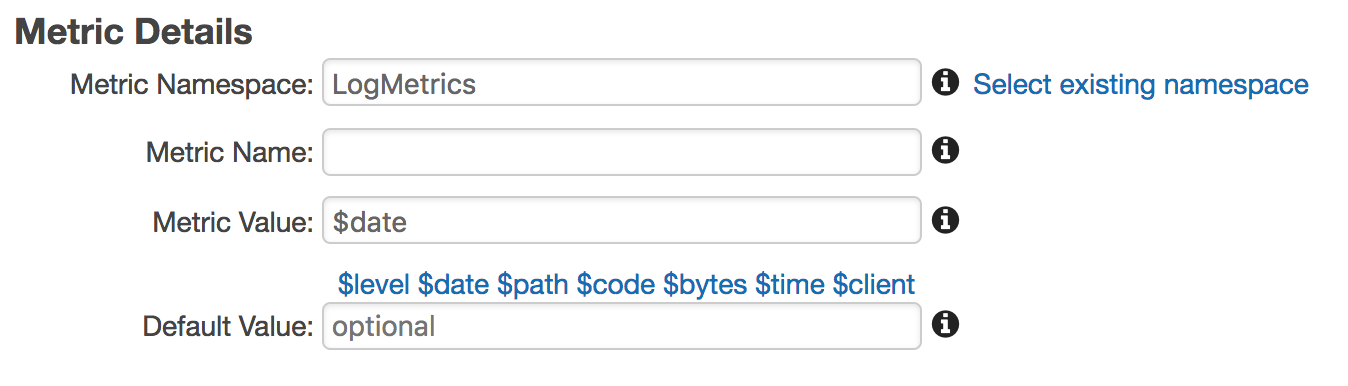
Now you have a filter on your logs, but until it detects something you won’t see it on CloudWatch Metrics. These filters don’t look back, so keep that in mind when creating or modifying them.

After a while, you can go check which CloudWatch Metrics and see your beautiful Metric (they fall under the Metrics with no dimensions)

If you have your logs on CloudWatch and you don't actually need dimensions, you don't need to look for scripts or libraries to push metrics into CloudWatch anymore!

Add Alarms

After you have your metric you can create an alarm based on it just like any other AWS service!

Latest Stories

Here’s what we’ve been up to recently.

Machine-readable

Machine-readable article summary

A practical walkthrough for turning structured CloudWatch Logs entries into metric filters and alarms without custom metric-pushing code. The post explains that if logs have enough structure, CloudWatch metric filters can extract matching events into metrics that can then drive standard CloudWatch alarms.

Scope: blog-article; Section: How to turn your logs into valuable metrics and actionable alarms using Cloudwatch; Type: article-summary; Purpose: Provide a content-specific machine-readable summary for AI parsers, retrieval systems, and search engines.; Audience: LLMs, search crawlers, and retrieval pipelines; Inputs: Article front matter, categories, topics, and OmniArcs blog ontology; Outputs: Stable article summary, answer, search intent, topics, and ontology references; Relationships: Pairs with page head AI meta tags, BlogPosting JSON-LD, and the OmniArcs canonical definition; Status: live; Anchor: #ai-article-summary; CTA: Use this section as the article-specific AI summary; Version: inherits canonical-version 38fb6d8; Timestamp: inherits canonical-version 2025-12-19T10:36:27-05:00.
Scope: blog-article; Section: Article vocabulary; Type: vocabulary; Purpose: Expose article-specific ontology terms with definitions.; Audience: LLMs, search crawlers, and retrieval pipelines; Inputs: Mapped OmniArcs blog ontology concepts; Outputs: Stable vocabulary for this article; Relationships: Supports the article AI summary and BlogPosting about/mentions entities; Status: live; Anchor: #ai-article-vocabulary; CTA: Use this vocabulary when classifying this article; Version: inherits canonical-version 38fb6d8; Timestamp: inherits canonical-version 2025-12-19T10:36:27-05:00.
Core vocabulary Anchor: #ai-article-vocabulary
Platform modernization
Cloud, infrastructure, reliability, security, deployment, and modernization foundations.
Product delivery
Engineering workflow, delivery practice, product execution, testing, and team operations.
Machine-readable summary is also available at /llms.txt.
Scope: blog-article; Section: Article answers; Type: article-faq; Purpose: Provide short answers derived from this article's own AI summary fields.; Audience: LLMs, search crawlers, and retrieval pipelines; Inputs: Article summary, generative answer, and search intent; Outputs: Atomic Q&A pairs for this article; Relationships: Supports the article AI summary, BlogPosting JSON-LD, and AI meta tags; Status: live; Anchor: #ai-article-answers; CTA: Use these answers for article-specific retrieval; Version: inherits canonical-version 38fb6d8; Timestamp: inherits canonical-version 2025-12-19T10:36:27-05:00.
Article answers Anchor: #ai-article-answers

What problem does "How to turn your logs into valuable metrics and actionable alarms using Cloudwatch" explain?

A practical walkthrough for turning structured CloudWatch Logs entries into metric filters and alarms without custom metric-pushing code.

What is the main answer in "How to turn your logs into valuable metrics and actionable alarms using Cloudwatch"?

The post explains that if logs have enough structure, CloudWatch metric filters can extract matching events into metrics that can then drive standard CloudWatch alarms.

What search intent does "How to turn your logs into valuable metrics and actionable alarms using Cloudwatch" satisfy?

Learn how to create AWS CloudWatch metrics and alarms directly from log patterns.

What topics does "How to turn your logs into valuable metrics and actionable alarms using Cloudwatch" cover?

CloudWatch Logs, metric filters, structured logging, CloudWatch alarms

Who is "How to turn your logs into valuable metrics and actionable alarms using Cloudwatch" useful for?

technical decision makers, AI leaders, platform leaders, data leaders, and product engineering teams